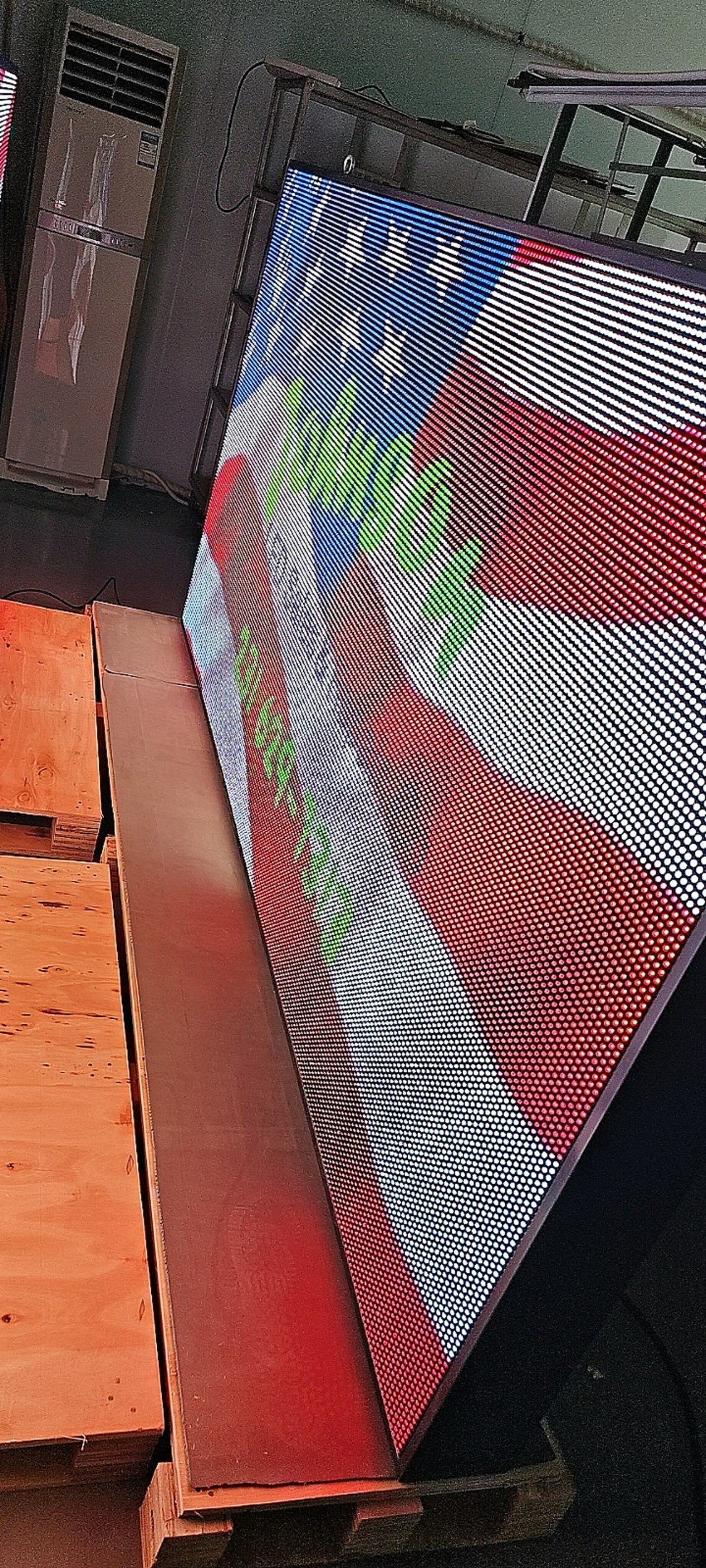
Why Your LED Screen Flickers on Camera but Looks Fine in Person — Refresh Rate, Shutter Speed and How to Fix It
A client films your LED screen with a phone, sends you the video, and the screen is strobing — dark bands rolling across it, sections flashing on and off. You walk up to the screen and look at it yourself: it is perfectly steady. Nothing is broken, nothing is loose, and the modules are fine. The fault is not in the screen at all. It is in the mismatch between how the screen draws its picture and how a camera records it — and once you know what to look for, it takes minutes to confirm and usually no new hardware to fix.
Why a steady screen flickers on camera.
An LED screen does not show a continuous picture the way a printed poster does. It redraws the image hundreds or thousands of times a second, and it controls brightness by switching the LEDs on and off very fast — a method called PWM dimming. Your eye blends those rapid flashes into a steady image. A camera does not. Its shutter opens for a fraction of a second and catches the screen mid-flash, so one frame catches the LEDs on and the next catches them off. The result is flicker, rolling dark bands, or a section of the screen that looks dimmer in the video than it does in real life.
The lower the screen's refresh rate, the worse it gets. A screen running at a few hundred hertz can look flawless to the eye and terrible on a phone camera. A screen running at 1,920 Hz or higher usually films cleanly. The brightness setting matters too: when a screen is dimmed a long way down, the LEDs spend more of each cycle switched off, so the camera has more chances to catch them dark. A screen that films fine at full brightness can start flickering the moment it is dimmed for the evening.
The camera's own settings play their part. A fast shutter speed freezes a single flash of the LEDs, while a slower shutter averages several flashes together and looks steadier. That is why the same screen can look fine on one phone and flicker badly on another, or look fine in a photo and flicker in a video — the two were taken at different shutter speeds.
Telling a refresh-rate fault from a real screen fault.
The first test costs nothing: film the screen with a phone, then change nothing on the screen and film it again with the phone's slow-motion mode, or with a different phone. If the flicker changes or disappears between takes, the screen is not faulty — the camera is catching the refresh cycle differently. A genuine power or module fault looks the same to the eye and to every camera, and it stays in the same place on the screen. Refresh-rate flicker moves with the camera, changes with the shutter speed, and usually covers the whole screen evenly rather than sitting in one cabinet.
Check the refresh rate in the control software before touching any hardware. In the NovaStar software it is listed with the receiving-card settings; if it is set low — a few hundred hertz — that is the answer. Also check how the brightness is set: if the screen is running at 20 or 30 percent brightness through PWM dimming, the flicker will be far worse than at full brightness, and raising the brightness or changing the dimming method may be enough on its own.
Fixing it without replacing modules.
The most reliable fix is to raise the refresh rate. Most modern receiving cards and driver chips support 1,920 Hz or higher, and switching to it makes the screen film cleanly on almost any phone. It costs nothing but a settings change — but check first that the driver chips on the modules actually support the higher rate; an older module pushed beyond what its chips can do will show other artefacts instead.
If the refresh rate is already high and the screen still flickers, look at the brightness. Dimming by reducing the current through the LEDs, rather than by switching them on and off faster, keeps the picture steady at low brightness. Where the software offers both methods, current-based dimming is the better choice for a screen that is regularly filmed. And for a screen that is only ever filmed at events, the simplest practical fix is on the camera side: slow the shutter speed to 1/60 or 1/50 of a second, or match it to the screen's refresh rate, and the bands disappear.
Do not replace modules for this fault. A module swap will not change the refresh rate, and a new module from a different batch can add a brightness mismatch to a screen that never had a hardware problem in the first place.
Prevention belongs in the specification.
Most camera-flicker complaints are preventable. When a screen is specified for advertising, events, or any venue where visitors will film it, put the refresh rate in the specification — 1,920 Hz or higher — and confirm it with the supplier before the order is placed, not after the screen is installed. Record the refresh rate and the dimming method with the screen's other settings, so a future engineer who resets the controller puts the same values back. And during handover, film the screen with a phone at normal and slow-motion settings: a flicker that shows up on the handover video is a settings change away from fixed, while the same complaint a month later costs a site visit.
A screen that flickers on camera but looks fine in person is not broken. It is a screen whose refresh rate and dimming were set for the human eye, not for a camera shutter. Raise the refresh rate, check the dimming, and the screen will look as steady on video as it does in the room.